Creating a map visualization in Power BI to display location data is not difficult. Power BI ships with a couple of different options available out of the box, and more can be added through the visuals store. Out of the box options include a native map, a “Filled Map” and ArcGIS Maps for Power BI, which is a 3rd party tool. The ArcGIS visualization provides many advanced features that the native maps do not and has a nice look and feel to it, but it can definitely get pricey. The Power BI Visuals store contains many other map visuals to import into your report, of which my personal favorite is Mapbox. In this blog post, we’ll be comparing the functionality of ArcGIS and Mapbox visualizations and their performance in Power BI.
ArcGIS
ArcGIS ships natively with Power BI so many users may already be familiar with it. Adding it to your report brings up an option to sign into your existing ArcGIS online or enterprise account. Adding a location field to the data will make this message disappear and bring up the map visual as expected. Right off the bat we can see that ArcGIS gives us a nicely formatted map and a set of options on the side.
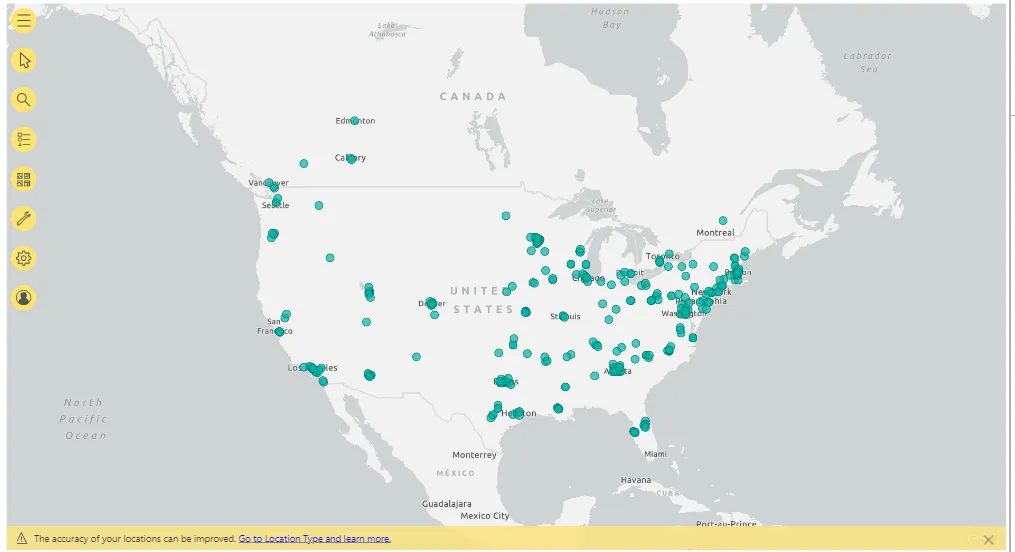
ArcGIS Map after Location Field Added
Pros and Cons
| Pros | Cons |
| Easy to start off using, can start to be used by inserting a single field. | Performance seems laggy with a larger dataset and the free version of ArcGIS. When applying filters, it has severe delays when zooming in and out. |
| Add “Infographics” to the map based on publicly accessibly government data or your own custom dataset (with appropriate licensing). | The settings can be really confusing to those used to working with Power BI visuals. |
| Country specific maps are provided through the “Location Type” formatting setting on the visual. | The cost of premium licensing can be prohibitive to many people who just want a simple map visualization. |
One of the biggest problems I have with ArcGIS is that their settings are not user friendly in the slightest. For example, if I want to change the existing map to be a heatmap instead of a normal map I have to go to the layers options. However you can’t get to layer options through the normal formatting options, or if you click on layer options through the settings in the menu on the top right of the map. You have to specifically go into layers from the left hand menu, then hit the 3 dots next to your layer and change it from there into a heatmap. This approach makes sense for a map with multiple layers but when you are only allowed a single layer in the free version its crazy.
That being said ArcGIS is a powerful tool that can be customized to create almost any type of map visualization. The settings, although complicated, are robust and drill down to each little setting that you might want to change. In addition, being able to add infographics is a nice perk for the end users who are using the report.
To read more about ArcGis Maps for Power BI:
Mapbox
The mapbox map visualization can be added through Power BI’s visual store and has a native feelwithin Power BI. All of the settings for the visual are in the normal Format tab on the right. Depending on what kind of map you want, different fields will need to be added but adding more fields will give you the ability to layer maps on top of each other. You will also need to get a free mapbox token to start working with the visual by signing up for an account and pasting it in the Viz Settings tab in Format options. This can be a pain at first, especially because deleting the visual will require you to paste the API key in again. Since that’s the case, I recommend keeping the API key somewhere handy.

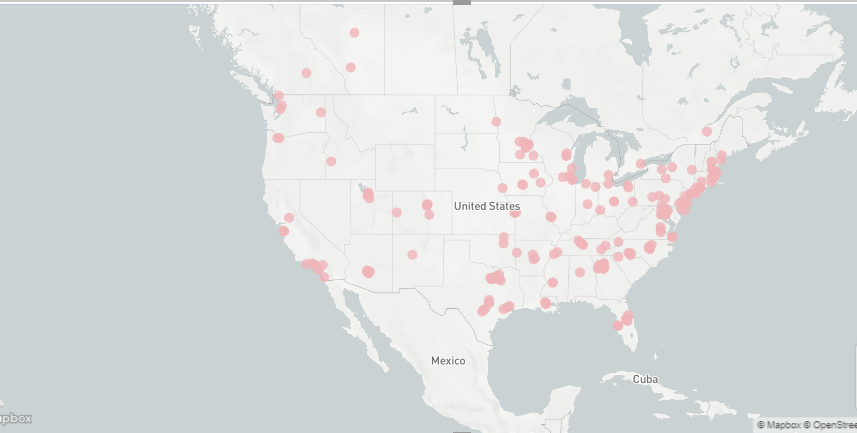
Mapbox visual with a single location field and on the Circle map setting
Pros and Cons
| Pros | Cons |
| The ability to layer two different kinds of maps on top of each other at no extra charge is really appealing. | Can be complicated to start using, an API key is needed and multiple settings need to be configured. |
| Users can use their own custom map style instead of relying on those provided | The default map is a pin map that uses circles as its icons, and there is no ability to change the shape. |
| The speed and responsiveness of the visual is phenomenal when compared to ArcGIS. | Some map types require longitude and latitude data which can be frustrating to get. Note: This data can be automatically obtained via Power Automate depending on your data source. |
I’ve gotten great results using Mapbox, once the pains of the initial setup are complete and you have the data fields that you need it’s a very robust and free solution for Power BI users. The ability to layer maps on top of each other at no cost is a huge benefit to end users. The settings provided are surprisingly robust even though they are missing a few simple pieces of functionality, for example adding the ability to change the shape used in the Circle map would be phenomenal. That being said, use Mapbox with confidence in Power BI reports as the performance is excellent and the number of options more than make up for a lack of some basic functionality.
To read more about Mapbox for Power BI:
Conclusion
ArcGIS and Mapbox have pros and cons and are robust solutions that can be used effectively in Power BI reports. I personally lean towards Mapbox because I’ve gotten stuck scenarios where a client wants additional functionality with ArcGIS that only comes with increased licensing. The flexibility of Mapbox’s no cost model allowed me to meet client requirements without having to ask for more money and that’s always appreciated.
Further Reading
- Learn how to easily get latitude and longitude for a given address via Power Automate
- How to build maps using Mapbox and ArcGIS